 Schedult
Billing and plans
Update your card, find invoices or change your plan
Manage payments in the portal, download invoices, change plan or switch to yearly, and what happens when a payment fails.
Everything about payments is under Billing: click your name at the bottom of the portal’s menu, then Billing. Card changes, invoices and cancelling open Stripe’s secure payment page through Manage billing. We never see your full card number.
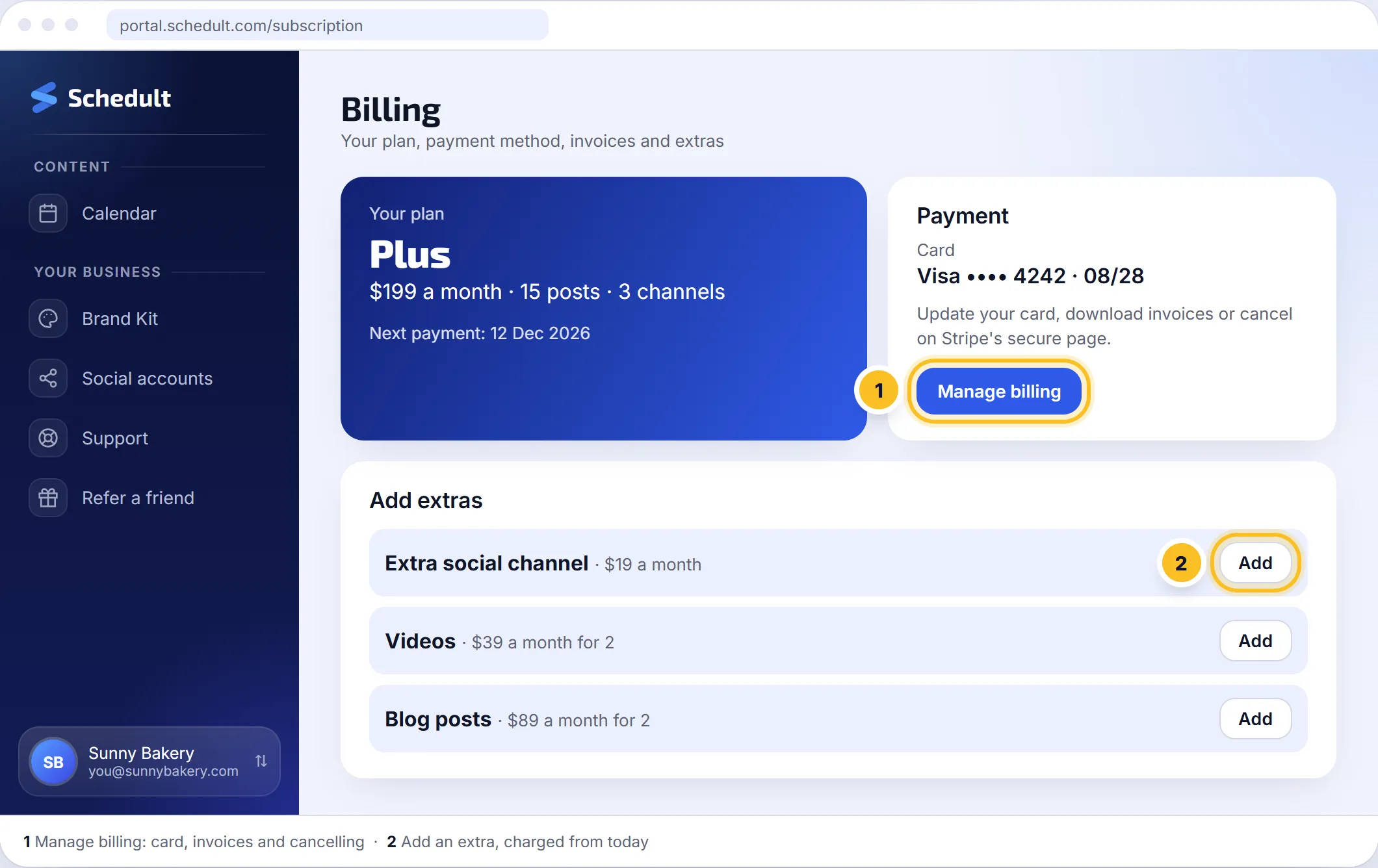
Update your card
- Click your name at the bottom of the menu, then Billing.
- Click Manage billing.
- On Stripe’s page, add your new card and make it the default.
- Close the page. Your next payment uses the new card.
Find and download invoices
- Click your name at the bottom of the menu, then Billing. Your invoices are listed there; click one to open it.
- To download them all, click Manage billing and open your invoice history.
Need a company name or tax number on your invoices? Add it under Manage billing, or contact us.
Change your plan
Contact us with the plan you’d like. We change it for you, and the new plan’s posts, channels and changes apply as soon as it changes.
Switch to yearly billing
Yearly costs about the same as 9 months of monthly billing. Contact us and we’ll switch you over.
A payment failed
Stripe tries your card again over the next days and your account keeps working in the meantime. Update your card under Manage billing so the next try goes through.
Account credit
If you have credit, for example from a referral reward, it shows under Billing and comes off your next invoices automatically.
Refunds
Your trial is free, so you can try everything first. For a refund question, contact us and we’ll look at your case. Our full terms are in the subscription policy.