 Schedult
Connecting your channels
How to connect your social accounts
Connect Facebook, Instagram, LinkedIn and your other channels to Schedult in a few minutes, without sharing a password.
You connect your channels yourself, in the portal, with a secure sign-in on each platform’s own page. It takes a minute per channel and we never see your password.
Before you start
- Have the login for each social account at hand. You sign in on the platform’s own page, not in Schedult.
- Make sure you are an admin of the business Page or account you want us to post to. On Facebook that means full control of the Page; on LinkedIn, Super admin or Content admin of the company page.
- Instagram must be a Business or Creator account. A personal Instagram account can’t be posted to by any app. See Connect Instagram.
Connect a channel step by step
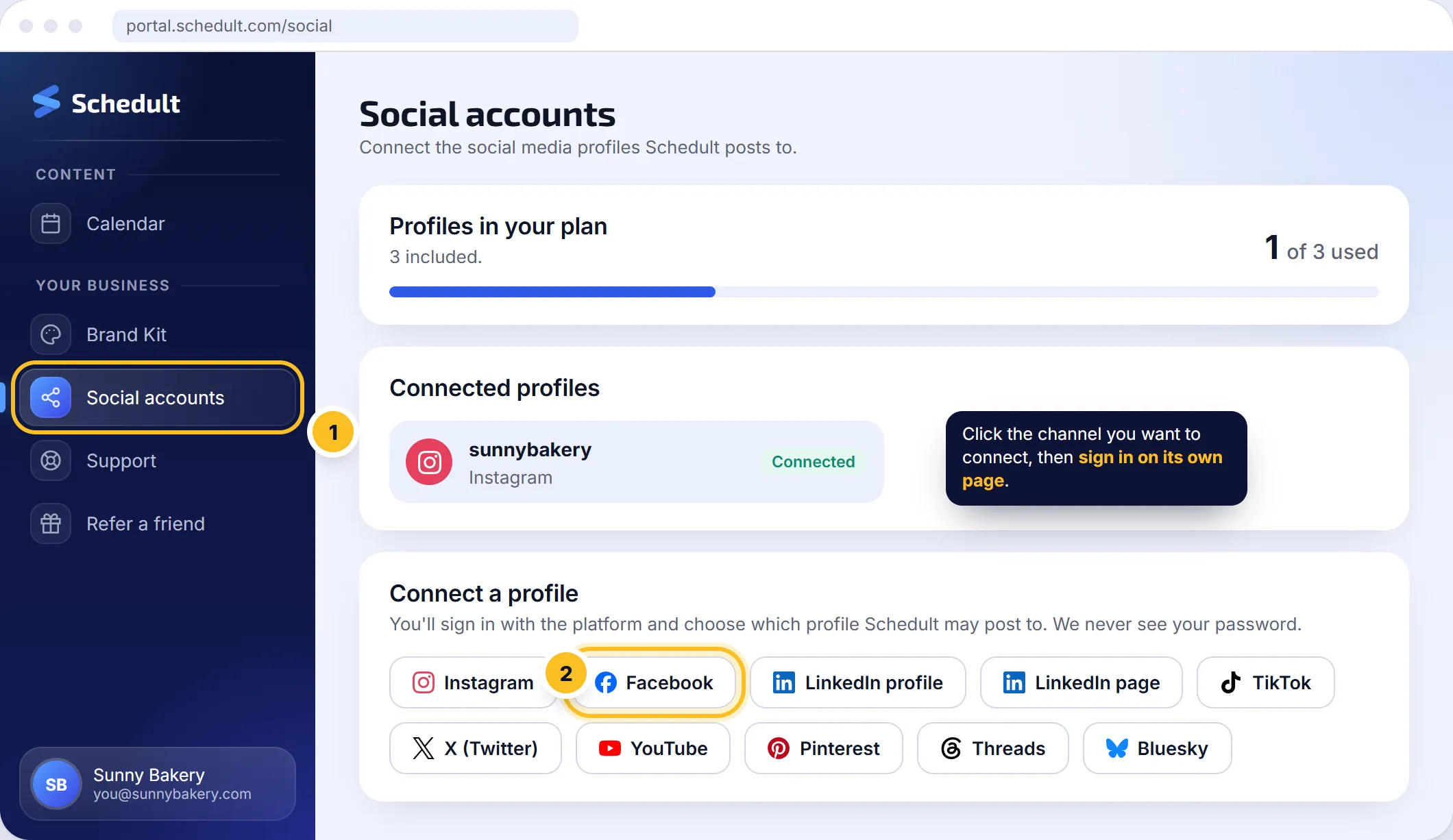
- Log in at portal.schedult.com.
- Click Social accounts in the menu.
- Under Connect a profile, click the channel you want, for example Facebook or LinkedIn page.
- A sign-in window from the platform opens. Log in if it asks you to.
- Choose the business Page or account Schedult may post to, and allow the permissions it asks for. Leave every permission switched on; posting doesn’t work without them.
- You come back to the portal. If the sign-in brought back more than one profile, the portal asks Which profiles should we post to? Tick only the ones we should post to and click Keep.
- The profile now shows under Connected profiles with its name and picture.
Tip: most connected profiles have a link to their public page. Open it to check it’s the right one.
Which channels can I connect?
Instagram, Facebook, LinkedIn profile, LinkedIn page, TikTok, X (Twitter), YouTube, Pinterest, Threads and Bluesky. Each has its own button.
How many channels can I connect?
Standard includes 2 channels, Plus 3 and Premium every channel you use. The top of the Social accounts page shows how many you’ve used, for example “2 of 3 used”. Need more? See Add more channels.
Something went wrong
- It connected my personal account instead of my business Page. See Connect your Facebook business Page or Connect your LinkedIn company page.
- “You’ve used all the social profiles in your plan”. Your plan is full. Remove a profile you don’t need or add more channels.
- “We can’t connect new profiles right now” or “Your social media workspace isn’t set up yet”. That’s on our side, not yours. Send us a ticket and we’ll sort it out.
- A profile says “Disconnected”. See Fix a disconnected profile.